
How to Fix Outlook When It Won’t Open or Keeps Crashing
If Microsoft Outlook refuses to open, freezes, or keeps crashing, there are several troubleshooting steps you can try to get it working again. Follow these steps in order until the issue is resolved.
1. Restart Your Computer
- Save any work and restart your computer.
- Sometimes a simple reboot can clear temporary glitches.
2. Start Outlook in Safe Mode
- Press Windows key + R to open the Run box
- Type “outlook.exe /safe” and press Enter
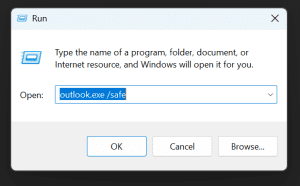
- If Outlook opens in Safe Mode, an add-in might be causing the problem.
3. Disable Problematic Add-ins
If Outlook worked in Safe Mode, try disabling add-ins:
- Open Outlook (in normal mode)
- Go to File > Options > Add-ins
- At the bottom, next to Manage, select COM Add-ins and click Go
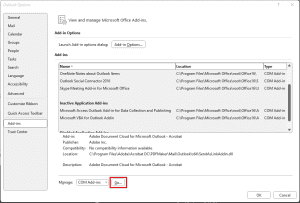
- Uncheck all add-ins, then click OK
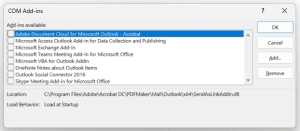
Restart Outlook. If it works, re-enable add-ins one at a time to find the problem.
4. Run a Quick or Online Repair
If Outlook is still not working, it might be due to corrupted program files.
- You can repair Microsoft 365 right from your Windows settings.
- There are two repair options: Quick Repair (fast, fixes most issues) and Online Repair (more thorough).
- Follow this step-by-step guide: How to Run Microsoft 365 Quick and Online Repair
If these steps don’t work, contact your IT support team for further assistance.
Was this helpful?
By voting, you consent to anonymous data collection to prevent duplicate votes. No personal information is stored.